
Invision Community installation
Forum Fortress for Invision Community 5 is the stable 1.4.1 release, installed from a package through the Invision AdminCP (forumfortress-invision-1.4.1.tar).
Use the package that matches your Invision Community version, and test on a copy of your community before installing on a busy production site.
Before you start
Make sure you have:
- an Invision Community version supported by the package
- AdminCP access
- permission to install applications or plugins
- outbound HTTPS access from your server to Forum Fortress services
- a short-lived one-time install token issued for the exact canonical forum domain and the Invision platform
If your community is hosted by a provider, you may need their help if outbound connections or file permissions are restricted.
Privacy and outbound access
Forum Fortress needs outbound HTTPS access to provide spam checks.
If your server uses an outbound firewall, allow HTTPS traffic on port 443 to hosts ending in:
*.ffapi.net
Before enabling the application or plugin on a live community, you may need to update your community's privacy policy. Forum Fortress receives community activity details for spam analysis, including submitted content and user details relevant to each check.
Read Privacy and network access before installing.
Install steps
- Download the Invision package from forumfortress.com/platforms (Download now).
- In AdminCP, install the uploaded package using Invision's normal application or plugin install flow. The exact labels can vary by Invision version.
- Open the Forum Fortress settings.
- Enter the one-time install token issued for this forum domain, then review the community URL and connection settings.
- Run Bootstrap now or Connection test. Wrong-domain, expired and unrelated replayed tokens are rejected; if the first response is lost, the exact still-valid token can recover only its original site and key. A successful response removes the local token copy.
- Select Open Forum Fortress in the application admin area to open the portal on this community. Use Complete registration in the application when you want to associate it with an account.
See Your account and forums for account linking.
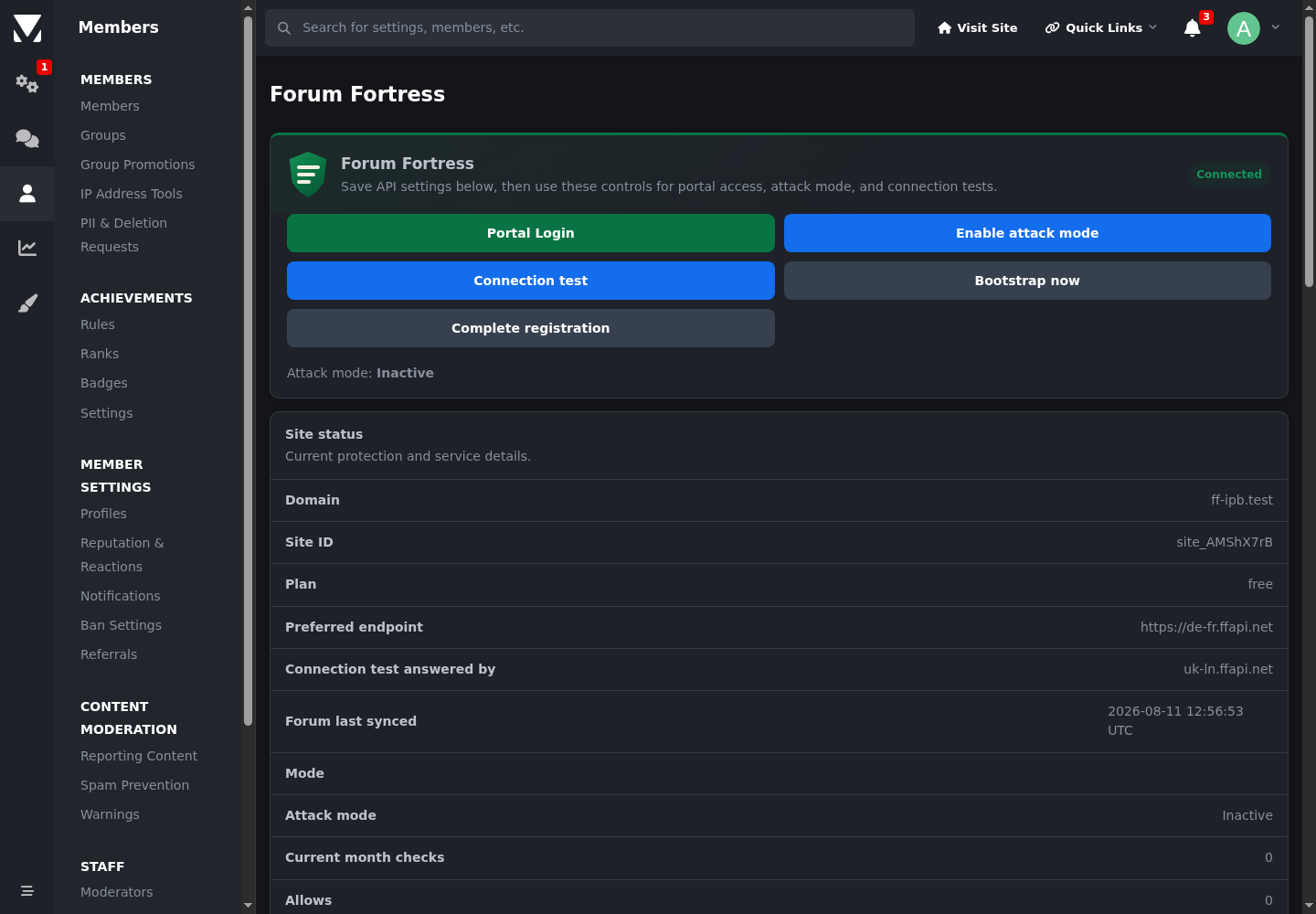
Forum Fortress administration after a successful Invision connection test.
Choose an API region
Use Global unless you need regional processing. Select United Kingdom only, European Union only, or United States only to keep live checks and decisions in that regional API service.
Allow global emergency fallback is off by default. If you enable it and the selected regional service remains unavailable after a retry, Forum Fortress may send the check through the global network. Processing may then occur outside the selected region. Leave it disabled when strict regional processing is required.
This setting applies only to live spam checks. Bootstrap, portal access and account management continue through the Forum Fortress control system in the United Kingdom.
What happens after install
Forum Fortress starts checking supported actions from your community.
Depending on the decision and your settings, suspicious activity may be allowed or blocked.
Use the portal for activity history, moderation, reports, billing and support.
Updating the package
When a new version is available:
- Download the latest Invision package from forumfortress.com/platforms.
- Follow Invision's normal upgrade process for the installed application or plugin.
- Recheck the Forum Fortress settings after the upgrade.
Troubleshooting
| Symptom | What to check |
|---|---|
| Installer fails | Confirm the package matches your Invision version and that your server can write to the required application/plugin paths. |
| Error such as 1C133/9 during install or upgrade | This is often caused by file ownership or permissions. The PHP user usually needs ownership of the relevant application files. |
| Connection test fails | Outbound HTTPS, DNS, firewall, WAF, proxy, and host-level security rules. |
| Portal does not show the community | Confirm the site is connected to the same portal account you are using. |
For help:
- Check the FAQ and troubleshooting guide
- Use Contact in the portal for specific issues
Include your community URL, Invision version, package version, and the exact error message.
Licence
The Forum Fortress application source is free and open-source software under
GPL-2.0-or-later. The hosted service is separate and governed by its service
terms. See Plugin licensing.