
Portal
The portal is where you review and manage Forum Fortress after the plugin is installed. It is not required for day-to-day protection.
Use it to review recent activity, manage connected forums, handle moderation, view reports, change plan and contact support. The image below comes from the Forum Fortress portal demo.
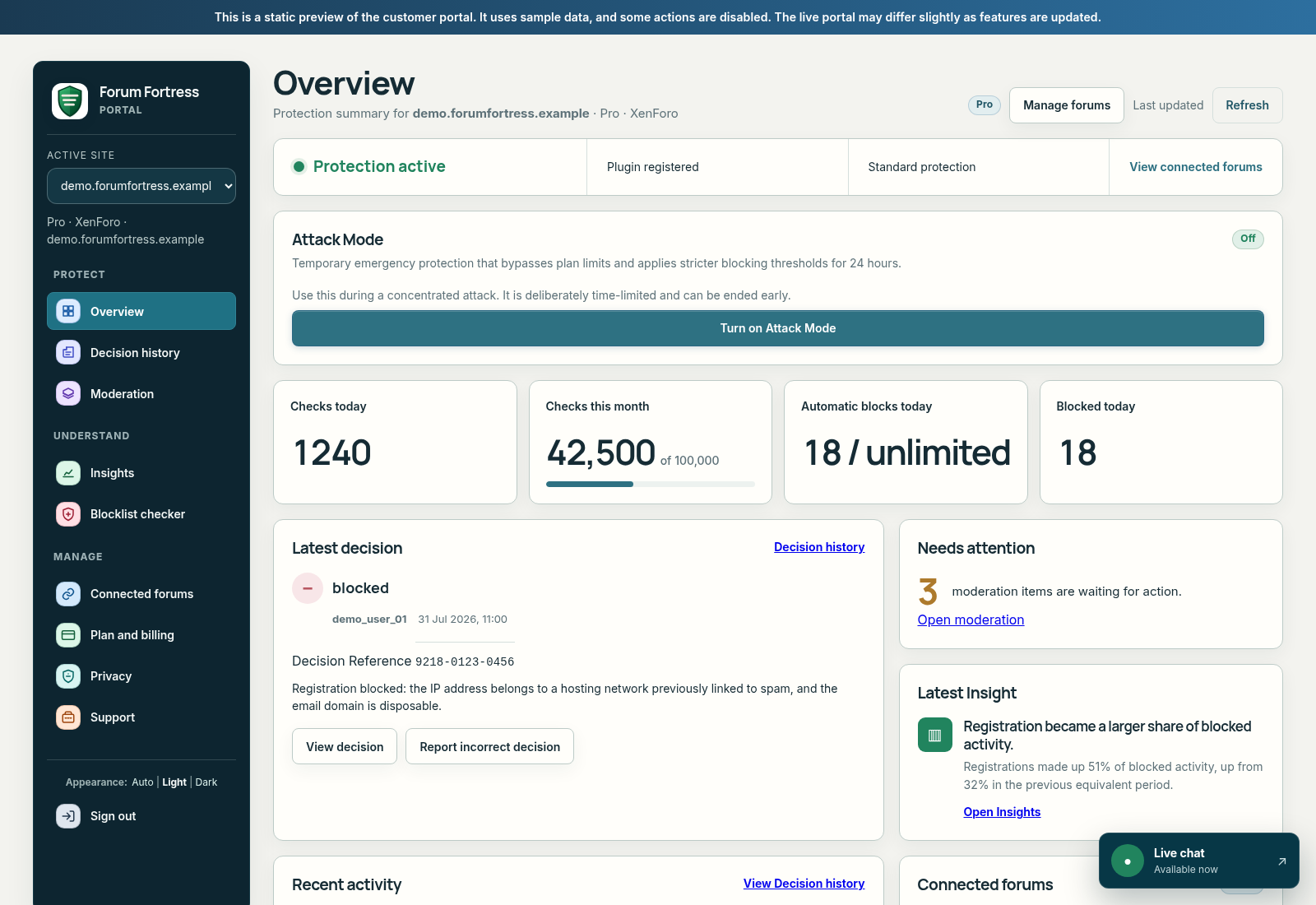
Captured from the Forum Fortress portal demo. The demo banner identifies the preview data shown.
The following captures are current views from the same Forum Fortress portal demo.
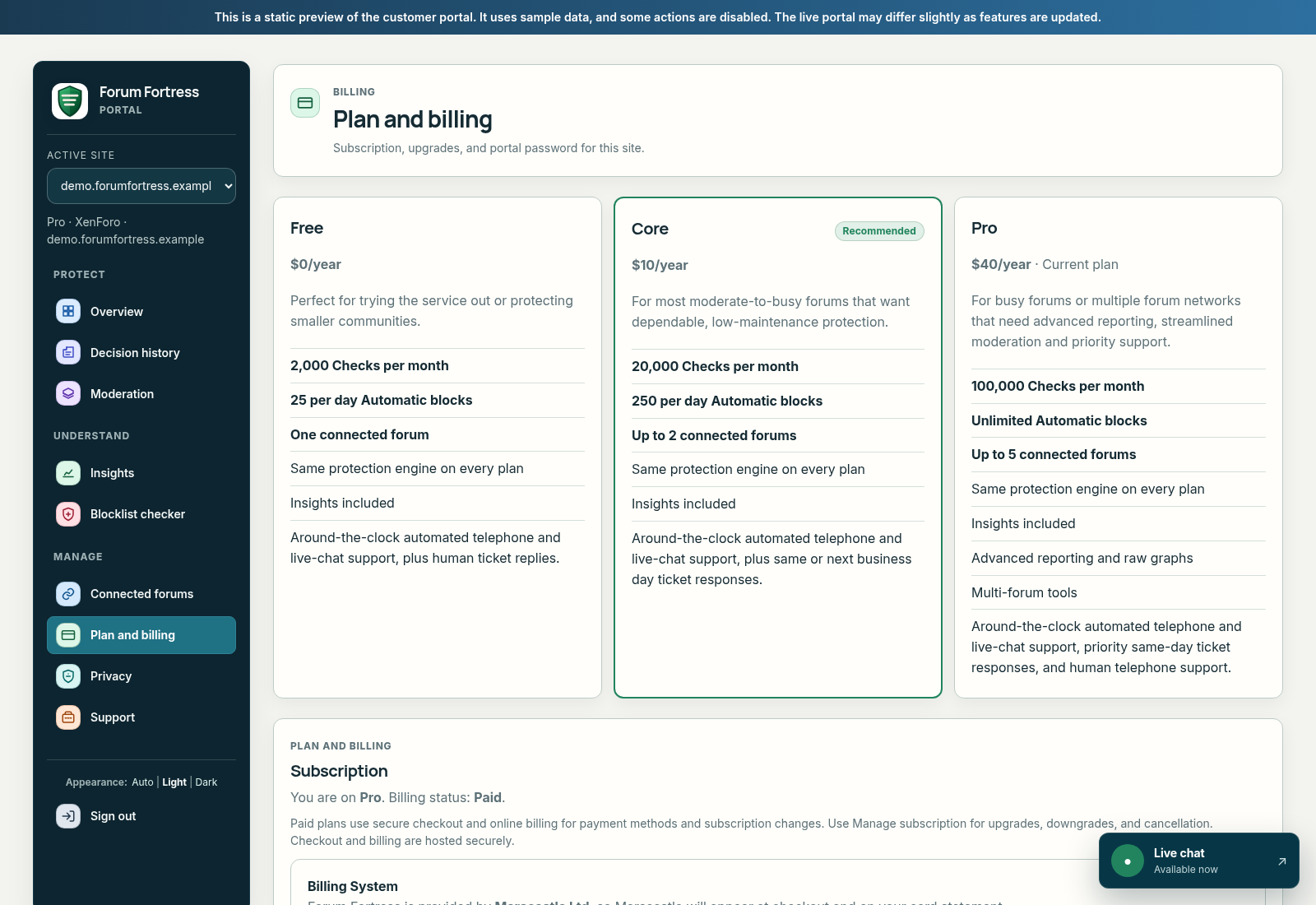
The demo Plan and billing view, including plan comparison and subscription details.
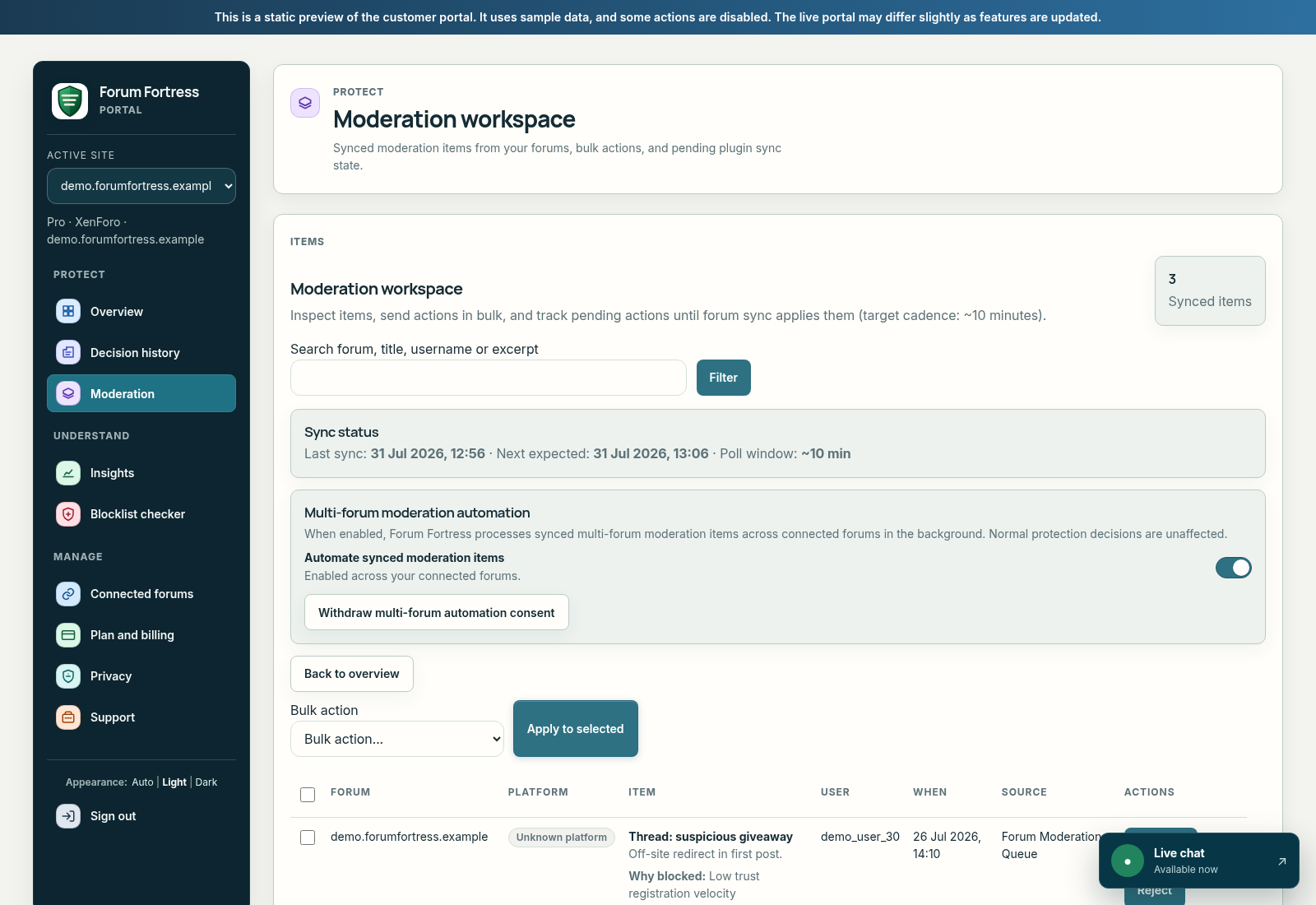
The demo Moderation workspace with its synced-item view and moderation controls.
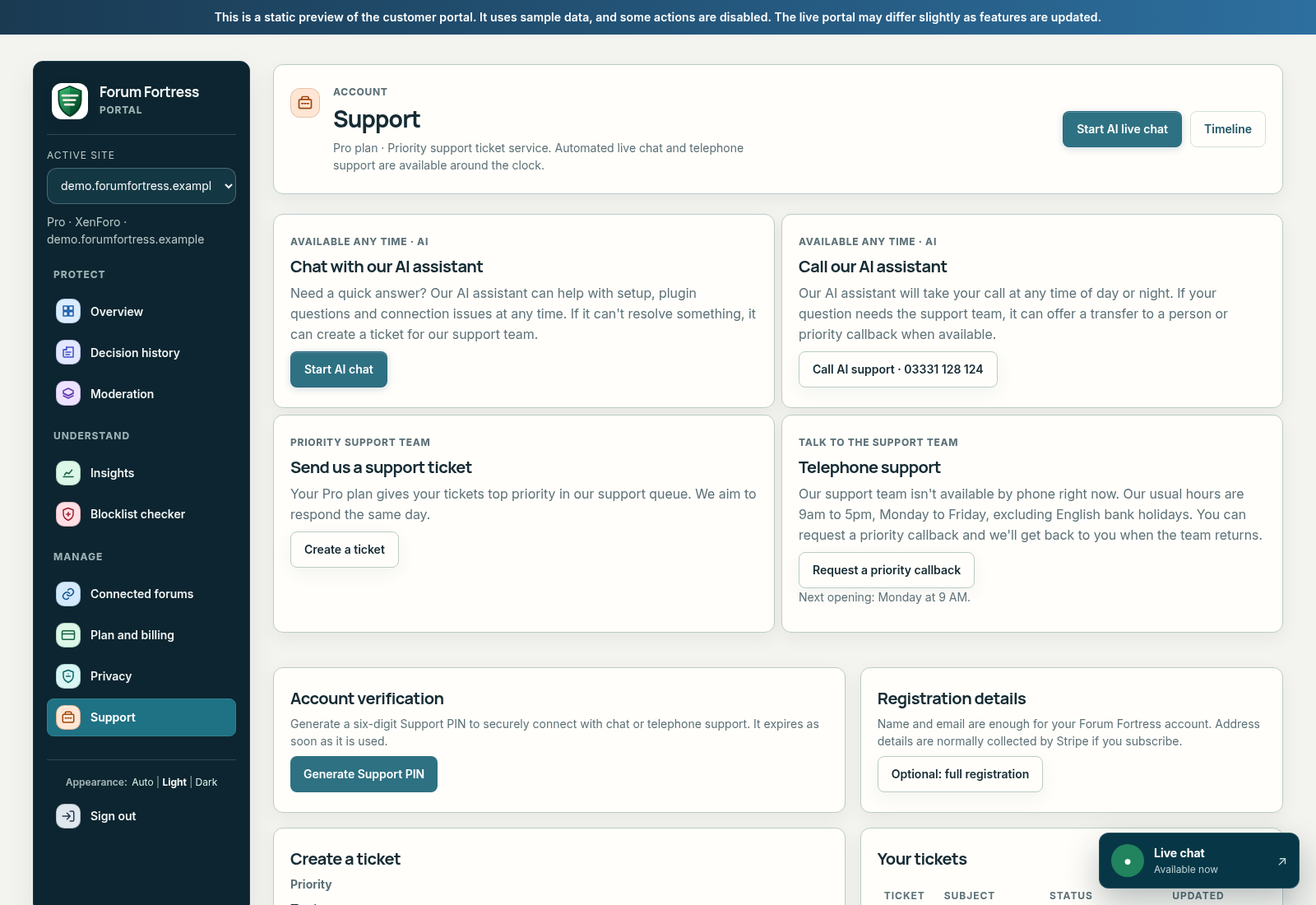
The demo Support page with chat, telephone, ticket, and account-verification options.
Try the portal preview
The portal preview uses sample data so you can explore the interface before installing the plugin. It is not connected to a real forum, so some controls are disabled or show preview notices, and the preview may not match the latest live portal exactly.
Start with the right page
| If you want to… | Go to | What to do next |
|---|---|---|
| Confirm protection is working | Overview | Check the connection and most recent activity. |
| Understand one allow/block result | Decision log | Open the decision and note its Decision Reference. |
| Look for a pattern | Insights | Compare activity and reasons over the available period. |
| Change a subscription or find usage | Plan | Review the limits and options displayed for your account. |
| Ask for account-specific help | Contact | Include the forum, time, and any Decision Reference. |
What you can do in the portal
Use the portal to:
- review recent decisions and activity
- manage connected forums
- use the moderation tools available on your plan
- view reports and trends
- manage plans, billing and support
Signing in
Forum Fortress uses a plugin-first connection flow. The plugin can bootstrap and start protecting the forum before you associate it with a portal account.
Typical flow:
- Install and enable the plugin on your forum.
- Run the plugin's bootstrap or connection test.
- Select Open Forum Fortress in the plugin's administration screen. This securely opens the portal for the selected forum.
- If you want the forum attached to an account, select Complete registration or Register Site in the plugin and follow the account steps shown there.
If you already have an account, you can also sign in using the magic-link or password method shown by the portal. A portal account is useful for managing multiple forums, plans, moderation, reports and support, but it is not required for the plugin's initial protection flow. There is no public portal signup form or separate manual site-registration step.
Choosing a forum
If you have more than one connected forum, make sure the correct forum is selected before reviewing activity or changing settings.
The All forums view combines forum-specific information for the forums on your account. A single-forum view shows items for that forum, plus any account-wide notices. Plan, Contact and Privacy always apply to the account.
Portal navigation
The portal sidebar is grouped into Protect, Analyse, and Account.
Protect
| Page | What it is for |
|---|---|
| Overview | A quick dashboard for the selected forum, including recent activity, protection status, notices, and shortcuts. |
| Decision log | Recent allow/block outcomes with the signal summary needed to understand each decision. |
| Insights | Protection summary, event activity, top reason groups and evidence-backed patterns. Free has seven days; Core has up to 30 days and period figures; Pro adds longer/custom periods and interactive Graphs. |
| Moderation workspace | Pro cross-forum moderation tools. Useful when managing multiple communities. |
Analyse
| Page | What it is for |
|---|---|
| Advanced reports | Charts and summaries showing trends over time. Availability depends on your plan. |
| Blocklist checker | Check an IP address, email address, username, URL or domain against Forum Fortress signals. |
| Latest reports | Recent report events that may be worth a second look. |
Account
| Page | What it is for |
|---|---|
| Plan | Current plan, included features, usage, billing, and upgrades. |
| Contact | Send a support request to the Forum Fortress team. |
| Support tickets | Follow ongoing support conversations linked to your account. |
| Privacy / Terms | Public policy pages for the Forum Fortress service. |
Overview
The Overview page gives you a quick sense of what Forum Fortress is doing for the selected forum.
Depending on your plan and configuration, it may show:
- recent decisions
- current protection status
- a small Needs attention list when an actionable issue exists
- queue volume
- trend direction
- attack mode status
- product notices
- shortcuts to common actions
Needs attention lists unresolved issues that may require action, ordered by severity. It identifies the affected forum and links to an action where one is available. Service faults stay listed until fixed. Optional plugin updates and privacy reminders may be dismissed or deferred; routine moderation and promotions are not included.
When there is nothing to act on, the section is hidden or reduced to a brief status. The sidebar shows a count only while actionable items remain.
Use this page for quick daily checks or to confirm that protection is active after install, upgrade, or host changes.
A useful first check
After installation, open Overview, confirm the forum shown is correct, then run the plugin’s connection test in your forum admin area. A successful plugin test is the authoritative confirmation that your forum can reach the service.
Decision log
The Decision log is for recent allow/block outcomes and the evidence behind them.
Review the reasons and context for a held item before applying an available action.
Basic Insights are available on every plan. Pro adds combined All forums analytics, interactive graphs, exports and Advanced Reports. Existing Graphs links open the Graphs section within Insights.
Moderation workspace (MultiMod)
The Moderation workspace (MultiMod) is for admins and moderators who manage more than one forum.
When your plan includes it, the workspace combines moderation queues from connected forums across supported platforms. Items normally sync about every 10 minutes. Use the portal controls to approve, reject or mark items as legitimate.
Decision log and reports
The Decision log and Advanced reports are deeper review tools.
Use them when you want to understand:
- what was blocked or allowed
- whether spam pressure is increasing
- which types of checks are being triggered
- how your forum is trending over time
These features may depend on your plan. If a feature is not included, the portal will explain what is needed.
Blocklist checker
The Blocklist checker lets you check an IP address, email address, username, URL or domain against Forum Fortress signals from the portal.
This is useful when you want to quickly investigate suspicious content without creating a test post on your live forum. The checker is available to signed-in customers in the portal; the former public lookup has been retired.
Plan and billing
The Plan page shows your current plan and available upgrade paths.
Use it to review:
- included features
- usage or limits shown for your account
- billing status
- renewal and invoice information where available
- upgrade options
The portal shows the current plan names, limits and pricing for your account.
Support
Use Contact for one-off questions or support requests.
Use Support tickets when you want to follow an ongoing thread tied to your account.
When contacting support, include:
- your forum URL
- the affected forum platform
- the approximate time of the issue
- examples of affected users, posts, or decisions
- any error message shown in the plugin or portal
Privacy and access
You only see forums connected to your login.
Privacy and DPA reminders are informational and never block portal access or forum protection. Ask me later hides the reminder for five days; accepting it or marking it not needed removes it.
The portal does not replace your forum's own member administration tools. It manages Forum Fortress activity, moderation workflows, reporting, plans, and support.
For more detail about what the plugin sends to Forum Fortress, retention, hashing, and outbound network access, read Privacy and network access.
Decision References
Each recorded check has a numeric Decision Reference, such as
6212-1234-0020. You can copy this value from the decision detail or activity
view and give it to support. Search accepts the reference exactly as displayed.
The full date and time shown alongside it remain the authoritative timestamp.