
phpBB installation
Forum Fortress for phpBB is installed as an extension.
Download the current 1.3.1 ZIP (forumfortress-phpbb-1.3.1.zip), place the files in the correct ext/ directory, enable the extension in the ACP, then complete the Forum Fortress settings.
Before you start
Make sure you have:
- a phpBB version supported by the package
- administrator access to the ACP
- file access to your phpBB installation
- PHP with outbound HTTPS support, such as curl or equivalent
- network access from your server to Forum Fortress services
Privacy and outbound access
Forum Fortress needs outbound HTTPS access to provide spam checks.
If your server uses an outbound firewall, allow HTTPS traffic on port 443 to hosts ending in:
*.ffapi.net
Before enabling the extension on a live community, you may need to update your forum's privacy policy. Forum Fortress receives forum activity details for spam analysis, including submitted content and user details relevant to each check.
Read Privacy and network access before installing.
Install steps
Follow phpBB’s standard extension install flow:
- Download the latest Forum Fortress phpBB package from forumfortress.com/platforms (Download now).
- Unzip the package and upload its
forumfortress/directory to your board’sext/directory. Keep the folder layout from the archive so the files land inext/forumfortress/protect/.... - In the phpBB ACP, go to Customise → Manage extensions and enable the Forum Fortress extension.
- Open the extension settings.
- Enter your forum's public URL and any required fields shown.
- Select Open Forum Fortress in the extension settings to open the portal on this forum. Use Complete registration in the extension when you want to associate it with an account; this is optional for initial protection.
Install from the public Git repository
The ZIP download above is the normal installation path. If you prefer to keep a checkout of the public source, clone the Forum Fortress phpBB repository and copy the extension into ext/:
git clone https://github.com/Forum-Fortress/phpbb.git ~/forumfortress-phpbb
cp -a ~/forumfortress-phpbb/ext/forumfortress/protect /path/to/phpbb/ext/forumfortress/
For a later update, pull the latest source and copy it over the installed extension:
cd ~/forumfortress-phpbb && git pull
cp -a ext/forumfortress/protect /path/to/phpbb/ext/forumfortress/
Then disable, replace, and re-enable the extension in Customise → Manage extensions.
See Your account and forums for account linking.
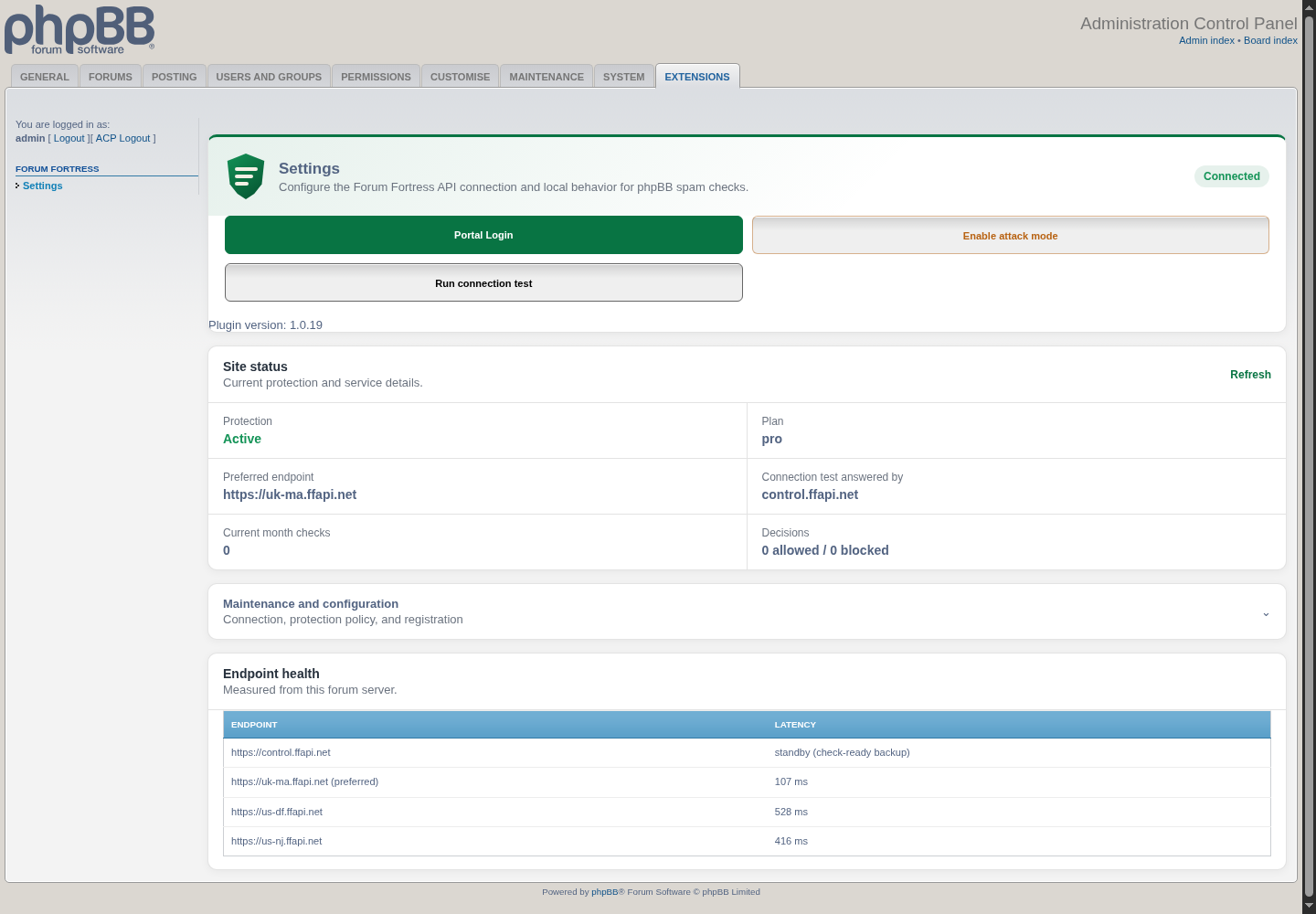
Forum Fortress administration after a successful phpBB connection test.
Choose an API region
Use Global unless you need regional processing. Select United Kingdom only, European Union only, or United States only to keep live checks and decisions in that regional API service.
Allow global emergency fallback is off by default. If you enable it and the selected regional service remains unavailable after a retry, Forum Fortress may send the check through the global network. Processing may then occur outside the selected region. Leave it disabled when strict regional processing is required.
This setting applies only to live spam checks. Bootstrap, portal access and account management continue through the Forum Fortress control system in the United Kingdom.
What happens after install
Forum Fortress starts checking supported forum actions and can help stop spam before it appears publicly.
Depending on the decision and your settings, an action may be allowed or blocked.
The portal shows the activity known to Forum Fortress. Some moderation behaviour may look slightly different from XenForo because phpBB handles queues and extensions differently.
Updating the extension
When a new version is available, follow phpBB’s standard extension update flow:
- Download the latest phpBB package from forumfortress.com/platforms.
- In Customise → Manage extensions, disable the Forum Fortress extension.
- Delete the extension’s files from the filesystem (
ext/forumfortress/protect/). - Unzip the new package into
ext/(same layout as install). - Enable the extension in Manage extensions and run database migrations if prompted.
- Check the Forum Fortress settings after the update.
Removing the extension
To remove Forum Fortress completely from your board:
- In Customise → Manage extensions, disable the Forum Fortress extension.
- Delete the extension’s data (use phpBB’s purge/delete data option for the extension when offered).
- Delete the extension’s files from the filesystem (
ext/forumfortress/protect/).
Reinstalling
If the extension is broken or settings are corrupted, disable it, delete its files (and data if you want a clean slate), then repeat the install steps with a fresh download.
Troubleshooting
| Symptom | What to check |
|---|---|
| Extension does not appear in ACP | Confirm install steps 1–3: files under ext/ with correct layout, then enable in Manage extensions. |
| Problems after an update | Follow Updating the extension: disable, delete old files, upload new files, enable. |
| Broken or inconsistent behaviour | Try Reinstalling: disable, delete data (optional), delete files, install again. |
| Connection errors | Outbound HTTPS, PHP curl support, DNS, firewall, WAF, or hosting egress rules. |
| Portal does not show the forum | Confirm the forum is connected to the same portal account you are using. |
| Moderation behaviour differs from another platform | This can be normal. Each forum platform handles queues and plugin hooks differently. |
For help:
- Check the FAQ and troubleshooting guide
- Use Contact in the portal for specific issues
Include your forum URL, phpBB version, extension version, and any error message shown.
Licence
The extension is free and open-source software under GPL-2.0-or-later. The
hosted service is separate and governed by its service terms. See
Plugin licensing.